Create your own newsletters with media reviews. On the newsPoint platform, you can also personalize your template with your logo, banners, and colors that match your company/product’s visual identity.
Step-by-step guide to creating a personalized newsletter
- Select the projects whose materials will be included in the newsletter (to select several projects at once, use the Ctrl key on your keyboard).
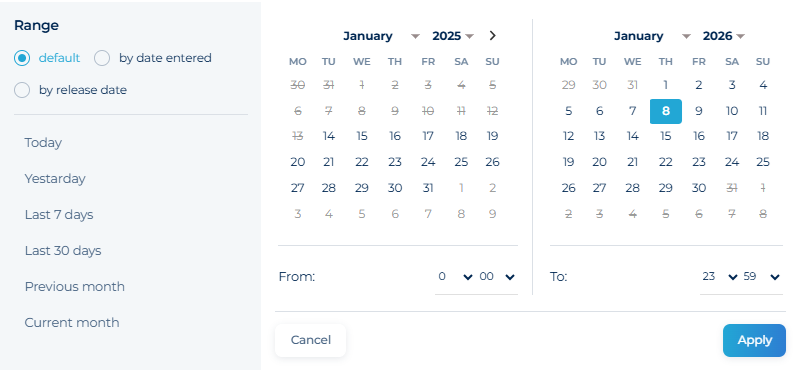
- Select the time period from which you plan to send publications in the calendar.
- Use the checkbox on the left to select the individual materials you want to send. To select all items, click the checkbox at the top.
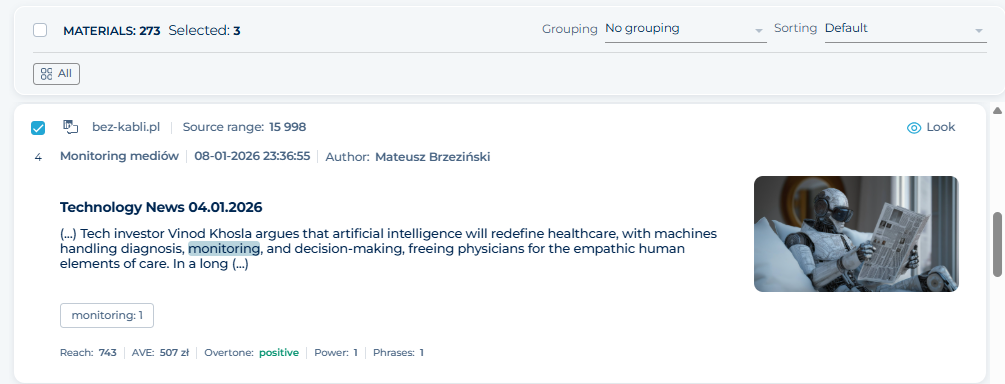
- Then select the Newsletter option above the publication window on the right.
Data for sending the newsletter
- Here, fill in the data for sending the newsletter: the name of the recipient or group to send it to, select a template (standard or feed). You can also give your mailing an individual title, e.g., Media review from June 6, 2026.
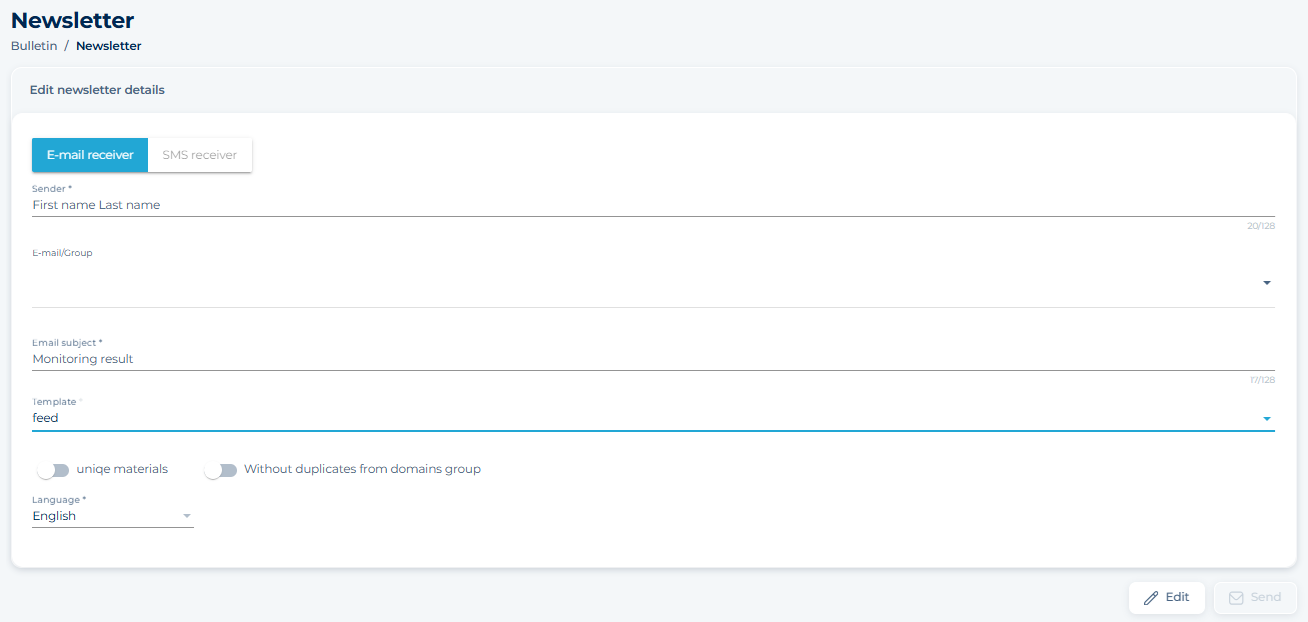
- You also have the option to filter the materials so that only unique materials are included in the review (in case publications are added to multiple projects) or to avoid sending multiple copies of the same material from domain groups.
Other settings are available by clicking the EDIT option.
Using the Additional Options section, you can freely personalize the content that will appear in the newsletter. Here, you can decide which newsPoint indicators should be visible under the materials (the range of available indicators depends on the selected template). Additionally, you can add a logo, your own banner, and choose a leading color that will identify your brand.
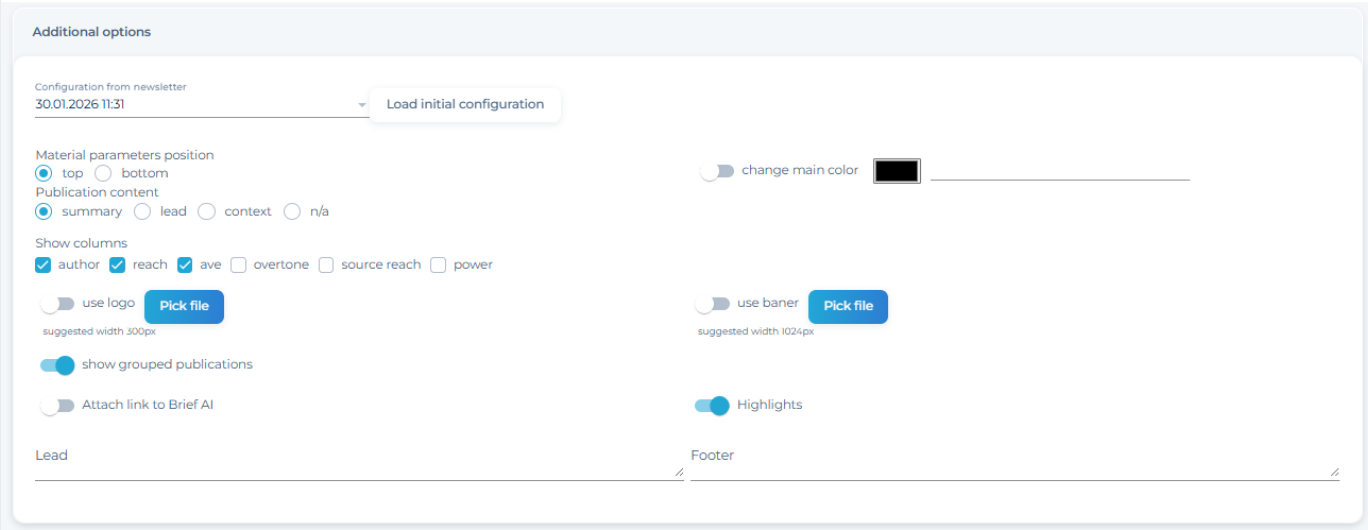
Within the feed template, you can also decide on the position of the material parameters, select the content that will describe the materials in the newsletter, and enable or disable the highlighting of phrases in the email. You can edit the content in the Edit materials in the newsletter panel.
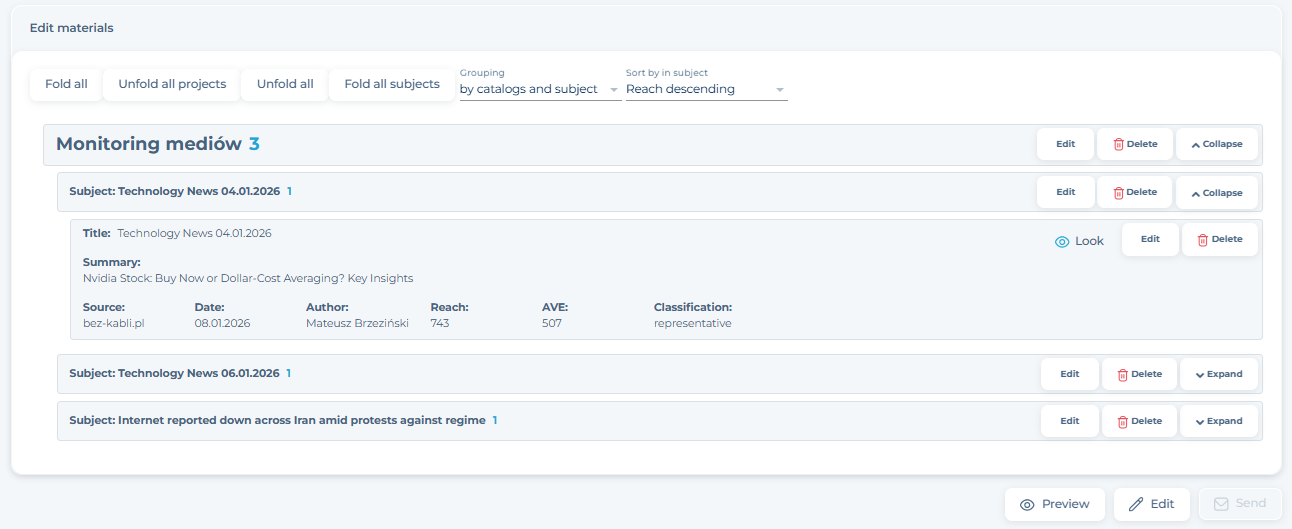
If you select the “Show grouped publications” option, a list of such publications will be displayed in the email. If the option is not selected, only the “representative” publication of the group will be included in the email, and the other materials from the group will be available after clicking.
You can decide whether to include a link to Brief AI in the newsletter.
Here, you can also create your own lead and footer.
The “configuration from newsletter” option will significantly speed up subsequent reviews, as it allows you to use settings that have already been saved.
EDITING MATERIALS IN THE NEWSLETTER
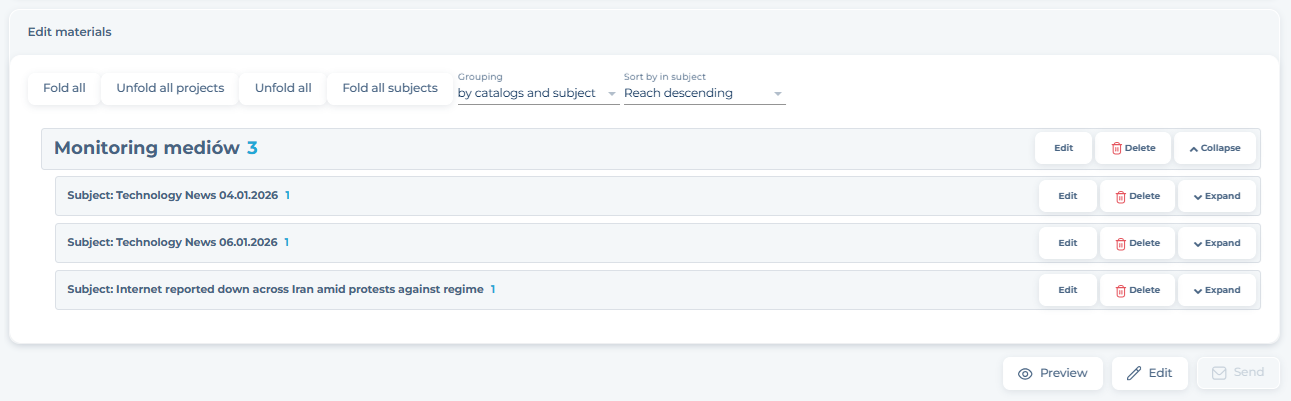
In this step, you decide on the order of the materials to be sent. You can group them by catalog, topic, or media. Additionally, you can sort them in ascending or descending order according to newsPoint indicators.
Then expand the list of collected publications and decide on the order in which the materials will be presented. Additionally, here you can edit the name of the catalog, titles, and content of the collected materials—for example, change the lead or write your own summary.
Use the View option to open a preview of the material you are working on. After each edit, click Close editing.
SENDING
Before sending, check how your newsletter looks (Preview), and then send it to interested parties.

List of sent newsletters and drafts
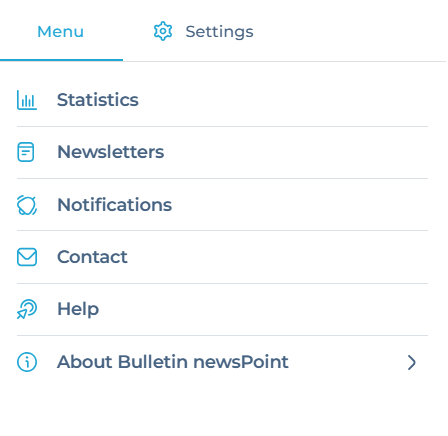
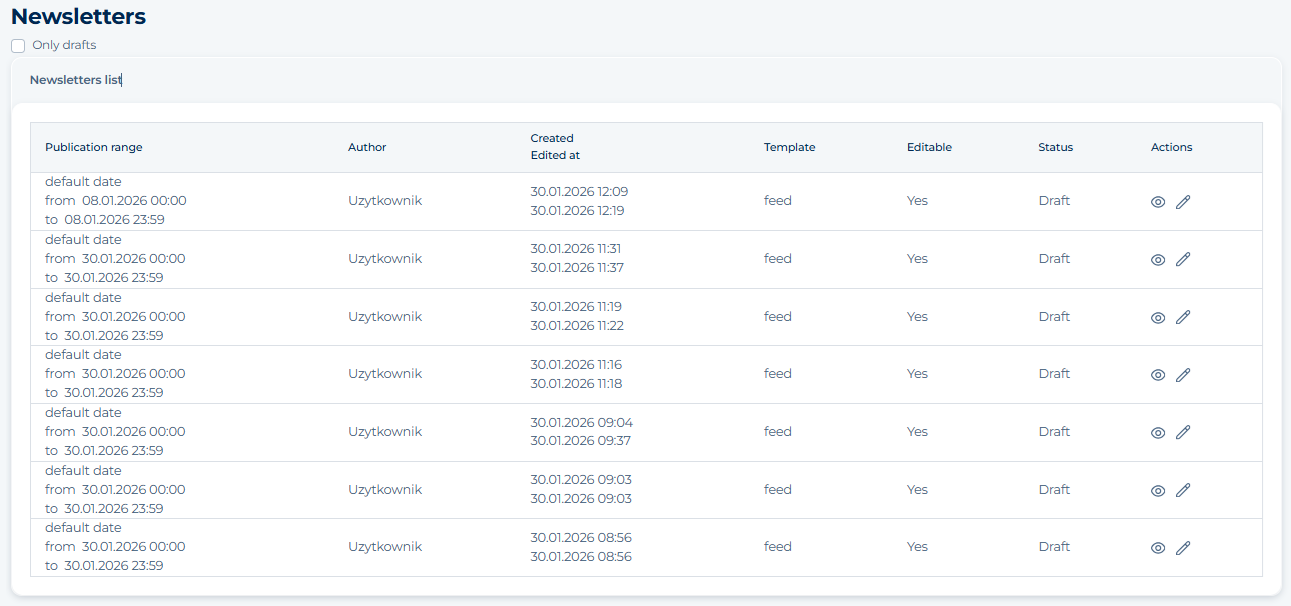
In the menu (top right corner of the dot menu), you will find the Newsletters section, where all drafts and newsletters you have sent are saved.